
Screen Recorder - AZ Recorder
AZ Screen RecorderVideo Players & Editors
4.758.66K Reviews
- Version
- 6.9.14
- Installs
- 100.00M
- Age Rating
- Everyone
Screenshots

Our Review of Screen Recorder - AZ Recorder
 Analysis by Appyee
I judge a screen recorder not only by whether it can capture a clean clip, but also by how clearly it lets me decide what to record and when. That matters when a phone screen may show a private message, a payment screen, or someone else’s details. Screen Recorder - AZ Recorder is built for everyday screen capture, with recording and editing tools in one app. My view is that it is most useful when I want a quick, self-directed way to make a tutorial or save a short demonstration, rather than a complicated production workflow.
Trust starts with the recording moment
Screen capture is different from taking a photo: a recording can preserve a sequence of taps, notifications, and on-screen information that I might not notice while I am focused on explaining something. I treat that as a reason to prepare before pressing record, not as a reason to assume the app is doing anything beyond its visible role. The practical question is whether I can keep control of the session and review the result before sharing it.
The app is made by AZ Screen Recorder and sits in the video-player and editing space. It is free to install, with optional in-app purchases priced from $2.49 to $17.99 per item. Its Everyone age rating makes it broadly accessible, but that does not mean every recording is suitable for every audience. I would still check the clip myself, especially if it includes messages, account pages, or other people’s information.
What the controls make easier
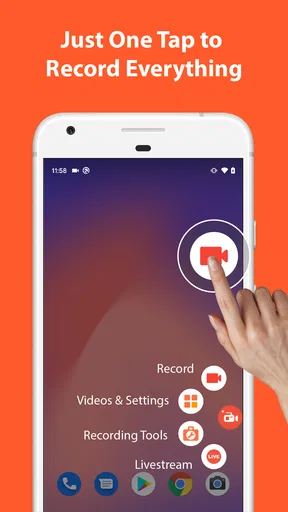
The floating recording widget described in the app gives me a practical way to pause or stop without reopening the main interface. That is useful during a walkthrough: I can pause while moving between screens, then continue when I am ready to explain the next step. I would use those pauses to avoid capturing unrelated content rather than relying on editing to fix every mistake later.
The option to record internal audio and microphone sound is another meaningful choice. It can help when I want game audio alongside spoken commentary, or when I am demonstrating a process and explaining each action. These sources also create a trade-off: microphone audio can pick up room noise, while recording system sound may capture audio I did not intend to include. I would make a brief test clip first and listen back before recording anything lengthy.
Private screens need a little planning
Before a session, I close or silence anything I do not want in the video, check which app or page will appear first, and decide whether narration is necessary. A screen recorder can make a polished tutorial, but it can also make an accidental notification permanent in the exported clip. Taking a moment to tidy the screen is a simple habit that gives me more control than trying to crop around an interruption afterward.
The “magic button” option is presented as a way to stop recording without showing a stop button on screen. I see that as a convenience for keeping a demonstration visually tidy, not a substitute for being clear with anyone whose activity or information might be captured. If I am recording a shared conversation, a work screen, or another person’s content, I would get the appropriate permission and make sure the final clip does not expose details that are not meant to travel.
A useful workflow, with sensible limits
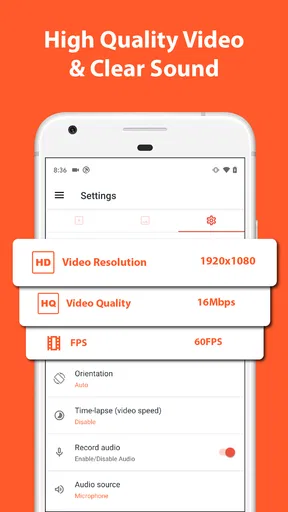
AZ Recorder offers adjustable resolution, bit rate, and frame rate, which gives me room to match the recording to its purpose. For a simple settings tutorial, I would favor a manageable file over the highest possible quality; tiny text and fast movement may call for different choices. Higher-quality settings can also mean larger files, so I would record a short sample and check readability before committing to a long session.
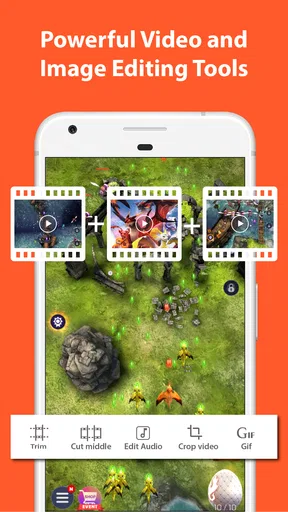
The built-in editor is positioned for quick trims and additions such as music, rather than detailed production. That is a good fit when I need to remove the few seconds before or after a demonstration. If a project needs careful sound mixing, multiple layers, detailed captions, or a precise timeline, I would move the clip to a dedicated editor instead of expecting a screen recorder’s editor to do everything.
AZ Recorder has an average rating of 4.8 from around 2 million ratings, and it has passed 100 million installs. Those figures suggest that it is widely used, but popularity does not tell me whether its recording controls match my personal privacy needs. I would still review the permissions Android asks for at installation and when I use particular functions, and make my decision based on the prompts shown on my own device rather than assuming every permission is required or harmless.
It has been available since November 11, 2014, and version 6.7.9 supports Android 6.0 or later. That makes the compatibility threshold worth checking before installing on an older device. The app’s presence on iOS is not something I would assume from the Android version details, so I would verify availability and compatibility in the relevant store before planning a workflow around a particular phone.
Getting Started with AZ Recorder
First off, downloading and installing Screen Recorder - AZ Recorder was a breeze. It's available on both Android and iOS, so no worries about compatibility. Once installed, the setup process was straightforward. The app doesn't bombard you with unnecessary permissions, which is always a huge plus in my book.
User Interface and Features
The user interface is clean and intuitive. You won't find yourself drowning in a sea of buttons and options. Instead, everything is laid out in a way that makes sense, even if you're not particularly tech-savvy. You launch the app, hit the record button, and you're good to go!
One of the standout features is the ability to record in high quality. You can choose from a variety of resolutions, bit rates, and even frame rates. Whether you're recording a game or a tutorial, having control over these settings ensures your video looks just the way you want it.
Recording and Editing
Once you start recording, a little widget appears on your screen. This widget is super handy as it allows you to pause, stop, or even take screenshots without having to dive back into the app. It hovers unobtrusively, so you can focus on whatever you're recording.
After you've captured your masterpiece, you can jump into the built-in editor. It's not as powerful as something like Adobe Premiere, but for quick trims and edits, it's perfect. You can cut out the boring bits, add some music, and voila, your video is ready to be shared with the world.
Additional Features
One cool feature is the ability to record audio from both the internal system and the microphone. This is particularly useful for gamers who want to capture in-game sounds and their commentary simultaneously. Just make sure your environment is quiet, or you'll end up with some unwanted background noise.
There's also a “magic button” option that allows you to halt recording without showing the stop button on the screen. This is perfect for those sneaky recordings where you don’t want viewers to know when you stopped.
Sharing is Caring
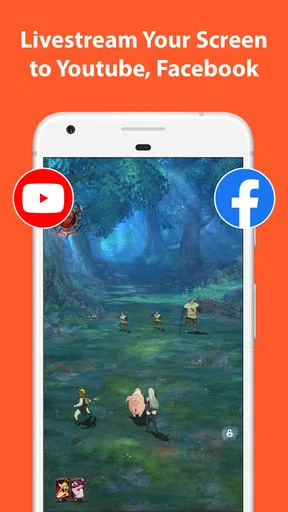
Once your video is ready, sharing it is a cinch. AZ Recorder offers direct sharing options to platforms like YouTube, Facebook, and more. I found this incredibly convenient, especially when trying to get content out quickly. No need to save the video to your gallery and upload separately unless you want to.
Additionally, the app compresses videos efficiently, so you won't have to worry about massive file sizes eating up your storage or taking forever to upload. This is a lifesaver for those of us with limited data plans!
Choosing the right use case
I find this app best suited to short, practical captures: a friend asking how to change a phone setting, a creator saving a gameplay moment, or a teacher preparing a quick visual explanation. In a realistic everyday case, I might record the steps for turning on a feature, pause the floating control while opening the relevant screens, then trim the start and finish so the clip gets straight to the point. That workflow is faster than recording with a camera pointed at the phone and produces a clearer view of taps and menus.
For longer lessons, a polished channel video, or a work presentation that needs branded graphics and careful audio, I would use a dedicated editing setup after capturing the screen. A built-in editor is convenient precisely because it keeps small jobs simple; it is not a reason to force a complex project into a limited timeline. I would also choose a different capture method if the content is protected or if a platform blocks recording, rather than trying to work around those restrictions.
Small choices that improve the result
One useful habit is to settle the resolution and frame rate before starting, then make a short test recording and inspect it at the size people will watch. Menus that look readable on the phone can become cramped in a shared clip, while fast gameplay may feel less smooth if the capture settings are poorly matched to the action. A test also reveals whether narration is too quiet beside the system audio.
I would plan the first and last seconds as carefully as the main demonstration. Start on a neutral screen, wait until the app or game is ready, and use the pause control if you need to navigate between steps. After recording, trim pauses and accidental taps before sharing. This is a simple workflow, but it avoids a common annoyance: a clip that technically captured everything yet makes the viewer sit through setup and dead time.
Compared with a phone’s built-in screen recorder, a dedicated app can be appealing when I want recording controls, audio choices, and quick editing in one place. The built-in option may be preferable if I only need an occasional basic capture and want fewer steps or another app to manage. Compared with desktop capture software, AZ Recorder is more convenient for recording directly on the phone, while a computer-based editor is the better choice for precise post-production. The right option depends on whether speed or detailed control matters more for the clip.
Who should use it—and who should not
I would recommend trying it if you regularly explain phone tasks, record gameplay, or need to make short demonstrations without moving files through several tools. The combination of a floating control, audio choices, and quick edits makes that kind of capture approachable. It is less compelling if your needs are limited to a rare, basic recording and your device already provides a built-in tool that does the job comfortably.
I would also skip it as a one-stop production solution if I needed advanced editing, extensive sound control, or a carefully structured video with multiple visual elements. And if a recording may contain sensitive information, I would first consider whether a screen capture is necessary at all. When it is, I would keep the session focused, check the finished clip from beginning to end, and share only the version I intend people to see.
Final Thoughts
Overall, Screen Recorder - AZ Recorder is a solid app for anyone in need of a reliable screen recording solution. It's user-friendly, packed with useful features, and doesn't skimp on quality. Whether you're a content creator, a teacher, or just someone who loves sharing moments, this app has got you covered.
So, if you're on the hunt for a screen recorder that won't let you down, give AZ Recorder a shot. It might just become your go-to app for all things screen recording. Happy recording!
Privacy and Permissions
See what permissions an app requests and how it handles your data.
- Photos/Media/Files
- read the contents of your USB storage, modify or delete the contents of your USB storage
- Storage
- read the contents of your USB storage, modify or delete the contents of your USB storage
- Camera
- take pictures and videos
- Microphone
- record audio
- Wi-Fi connection information
- view Wi-Fi connections
- Other
- view network connections, full network access, draw over other apps, control vibration, prevent device from sleeping, Google Play license check
Verdict
Strengths of Screen Recorder - AZ Recorder
- User-friendly interface with no ads.
- High-quality video recording options.
- Supports live streaming to social media.
- Offers video editing tools within the app.
- Records internal audio on supported devices.
Limitations of Screen Recorder - AZ Recorder
- No option to record in 4K resolution.
- Advanced features locked behind paywall.
- Consumes significant battery power.
- May cause device overheating during use.
- Limited cloud storage integration.
Other Releases by AZ Screen Recorder
View All
Reverse Audio: Reverse Singing
Music & Audio4.5
Similar Picks in This Category
View All
Google TV
Google LLC3.9

iTunes
Apple4.7

YouTube
Google LLC3.8

MX Player
Amazon Mobile LLC4.2

CapCut - Video Editor
Bytedance Pte. Ltd.3.5

PLAYit-All in One Video Player
PLAYIT TECHNOLOGY PTE. LTD.4.5
Frequently Asked Questions
What features does Screen Recorder - AZ Recorder offer?
Screen Recorder - AZ Recorder provides a wide range of features including high-quality screen recording, live streaming, and video editing capabilities. Users can capture smooth, clear videos with no time limits or watermarks. The app also supports facecam and audio recording, making it ideal for creating tutorials or gameplay videos.
Is Screen Recorder - AZ Recorder free to use?
Yes, Screen Recorder - AZ Recorder is available for free. However, it offers in-app purchases that unlock additional features such as advanced editing tools, ad removal, and more customization options. The free version provides basic functionalities that are sufficient for most users.
Does Screen Recorder - AZ Recorder require root access?
No, Screen Recorder - AZ Recorder does not require root access on Android devices. It is designed to work seamlessly on non-rooted devices, ensuring a hassle-free experience for all users. This makes it accessible to a wider audience who prefer not to root their devices.
How user-friendly is Screen Recorder - AZ Recorder?
Screen Recorder - AZ Recorder is known for its intuitive and user-friendly interface. It features a simple, easy-to-navigate design that allows users to quickly access recording features and settings. Even those new to screen recording will find it straightforward to operate, thanks to its well-organized layout.
Is the recorded video quality good with Screen Recorder - AZ Recorder?
Yes, Screen Recorder - AZ Recorder is praised for its high-quality video output. It allows users to record videos in resolutions up to 1080p with a frame rate of up to 60fps. This ensures crisp, clear recordings that are perfect for professional use or sharing on social media platforms.
